
Executive briefing · 2027 data center capacity planning
Before approving 2027 server purchases, confirm where each system will go—and whether that rack has enough space, power, cooling, network ports and redundancy.
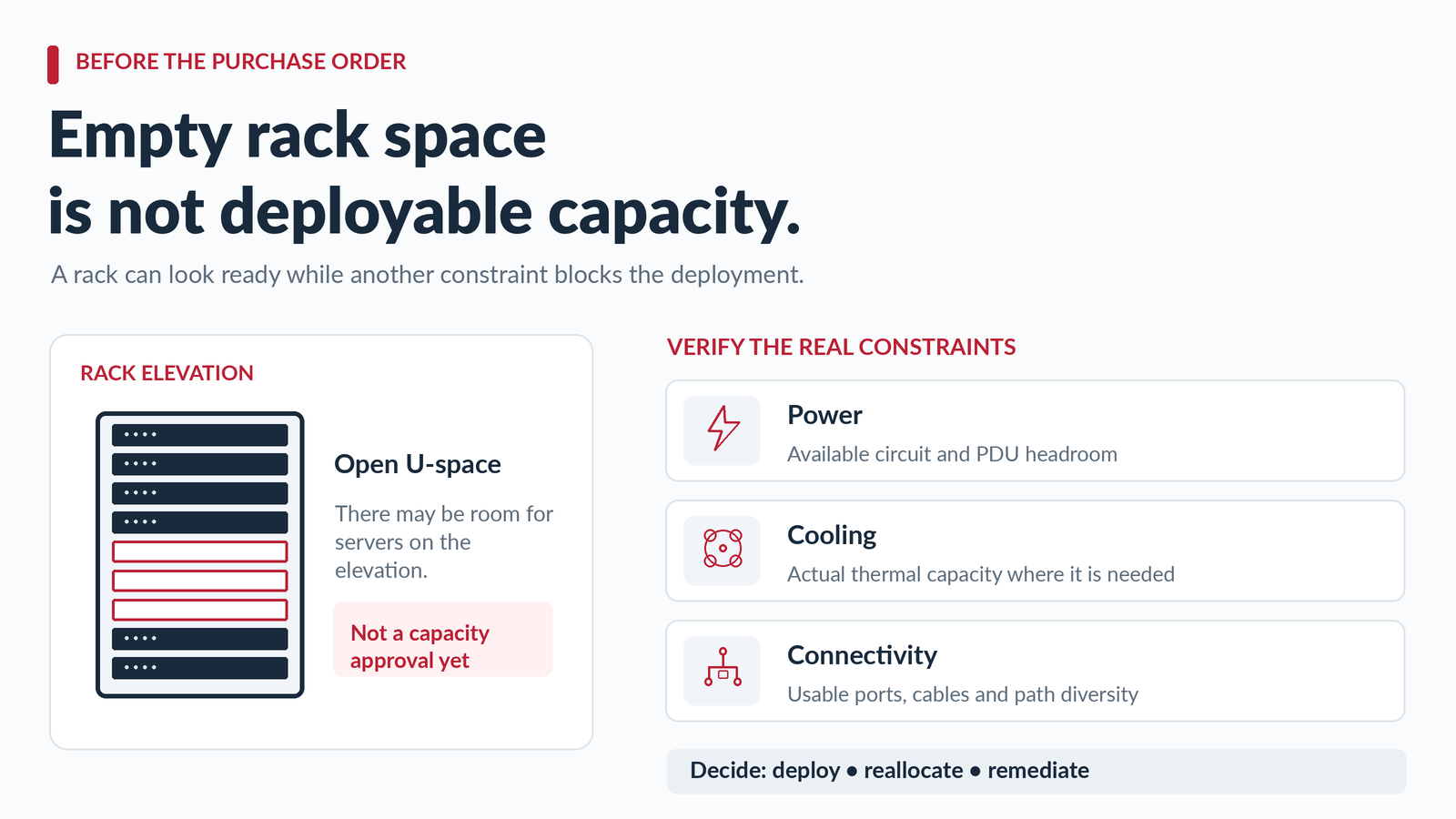
An empty rack slot does not mean you can install another server. Check the power, cooling, ports and failure paths before you approve the order.
What could block installation?
Imagine a new server order. The elevation shows six free U. But the rack’s A-side PDU has no suitable outlets, peak temperatures are already elevated, or the required network ports are unavailable. The budget looks straightforward; the installation isn’t.
In its 2026 Global Data Center Survey, Uptime Institute identified growing concerns about capacity forecasting and power availability alongside high costs. That is exactly why a year-end infrastructure budget needs verified, current operating data.
Can this equipment go into the proposed rack?
Get six yes/no answers from IT, Network Operations and Facilities. If any answer is no, identify the fix, owner and timing before approving the purchase.
Inspect racks, power and monitoring in netTerrain
These four netTerrain screens show where equipment fits, what is installed, how power use changes over time and where monitoring detects problems. Use them to review a proposed placement—not as a substitute for engineering sign-off.
Graphical Networks was named a Major Player in the IDC MarketScape: Worldwide Datacenter Facilities Management Software 2026 Vendor Assessment. See the company’s IDC announcement.
Check room and rack space
Use color-coded floor and rack views to shortlist possible locations, then verify the exact rack.

Inspect the front and back of the rack
Check available U-space, installed devices and PDUs before selecting a rack.

Review power use over time
netTerrain 10.0 introduced time-series SNMP performance data with built-in and in-diagram charts for power, temperature, bandwidth and other supported metrics, including up to 12 months of history. Historical readings help reveal peaks and trends that static records cannot.
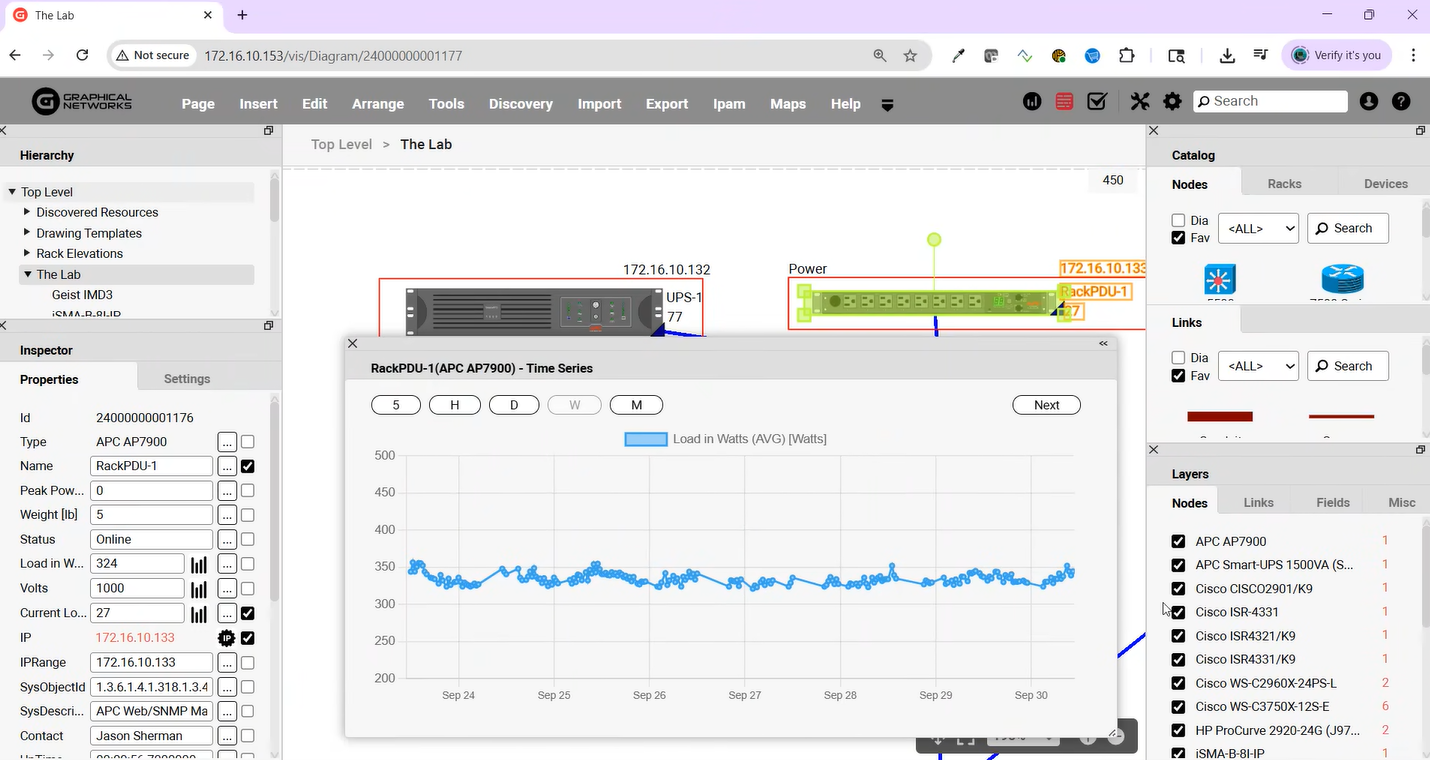
Check temperatures, power and alerts
With the appropriate monitoring data connected, netTerrain can display equipment-health and environmental information alongside documented power and space capacity. Monitoring helps identify exceptions, but it does not replace Facilities’ engineering approval.

See the netTerrain data center product overview and the 10.0 performance-monitoring release announcement.
Approve, move or upgrade
One-page approval packet: requested workload; exact rack; six check results; latest readings; missing capacity (if any); upgrade cost; owner and install date.
Modeled or nameplate capacity is not the same as measured load. Always validate electrical, thermal and resilience decisions with the responsible engineering teams.
If a location fails a check, don’t automatically buy another rack. First check whether a different rack works—or whether one targeted upgrade solves the problem.
